How to scan a stack of papers for grading
You already scan your class set on the copier. This walks the whole way from that folder of PDFs to marked-up papers, including the one setting that keeps a multi-page test together as a single submission.
Steps
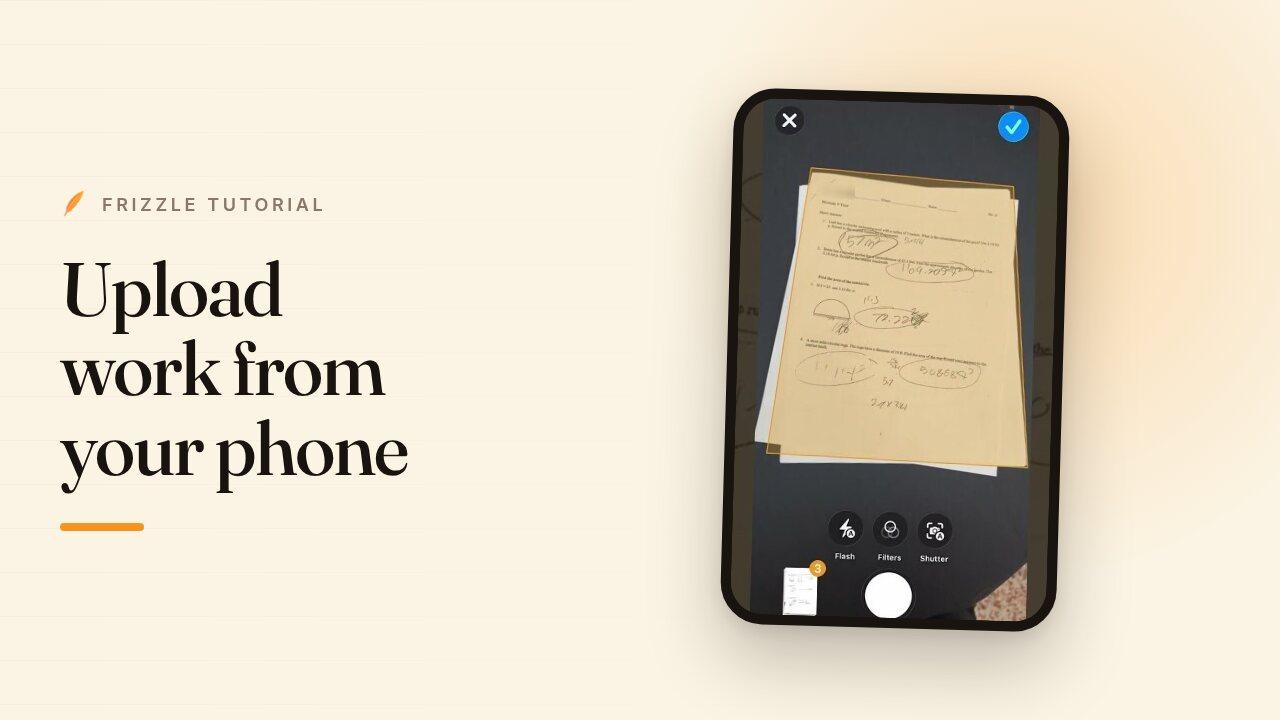
- Scan the class set on your copier as PDFs, or photograph the pages — PDF, JPG, PNG and HEIC all work.
- Open Grading. The page opens on "Ready to grade?" with a dropzone in the middle.
- Pick your subject, then choose Grade, Feedback, or both. Turn on Rubric if you are uploading an answer key alongside the work.
- Drop the whole stack on the dropzone, or click to browse to it.
- If each student handed in more than one page, set the pages per submission before you upload — this is what keeps a five-page test as one submission instead of five.
- Upload. Frizzle splits the stack by student, reads the names off the pages, and starts grading.
- Pick your class when the grading workspace opens, and Frizzle matches the names it read to your roster.